
How to Protect Your Data: 10 Practical Cybersecurity Tips for Everyday Users
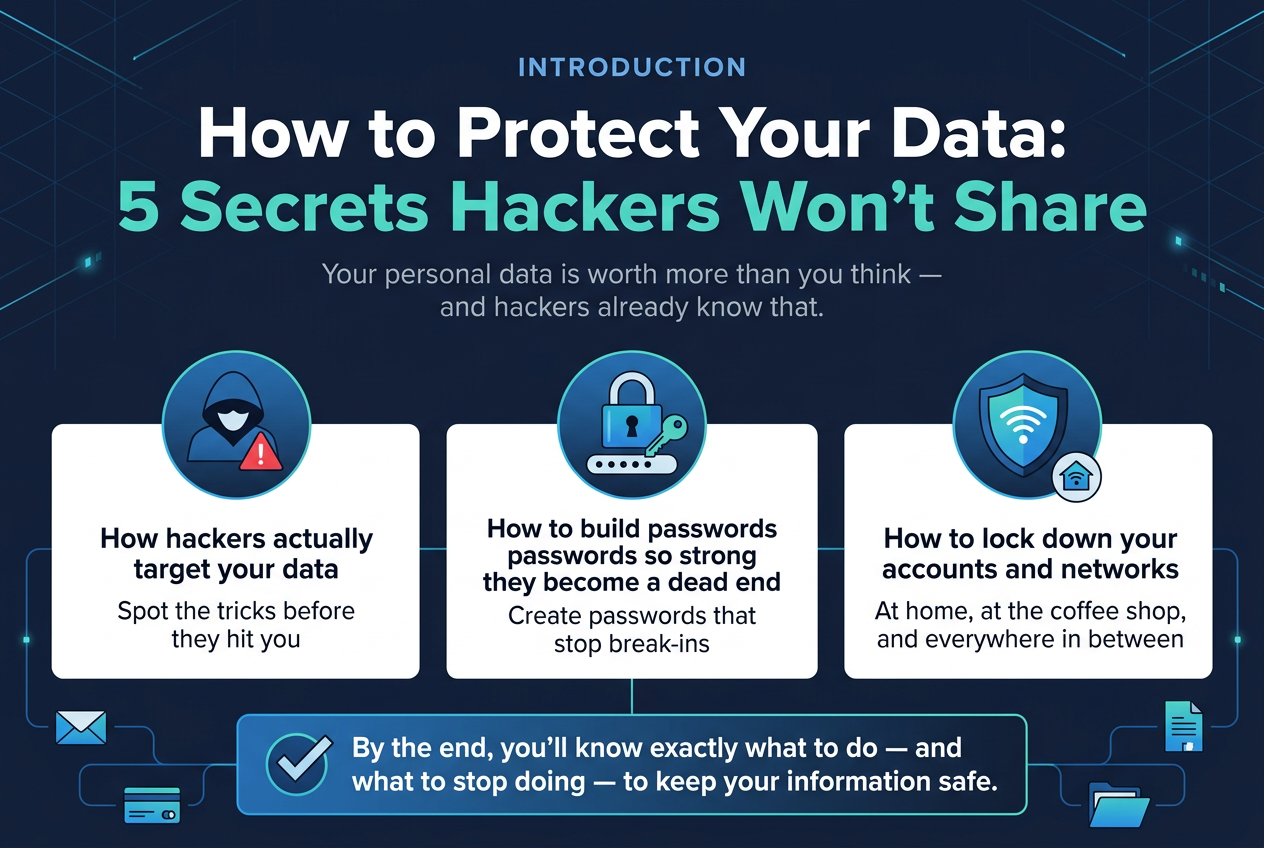
Your personal data is worth more than you might think, and the people trying to steal it know that too. Every day, ordinary people accidentally expose their information through a reused password, an unlocked phone, or a link clicked a little too quickly.
You don't need to be a tech expert to fix this. Many successful attacks against everyday users rely on a handful of repeatable, avoidable mistakes — not some unstoppable super-hacker. This guide walks through ten practical, up-to-date habits that meaningfully lower your risk.
In short: to protect your data online, use long and unique passwords with a password manager, turn on multi-factor authentication, secure your email and recovery options, be careful on public networks, keep your devices updated, limit which apps can access your accounts, back up your important files, and watch for early signs of a compromised account.
Let's go through each of these in detail.
1. Understand How Hackers Target Your Data
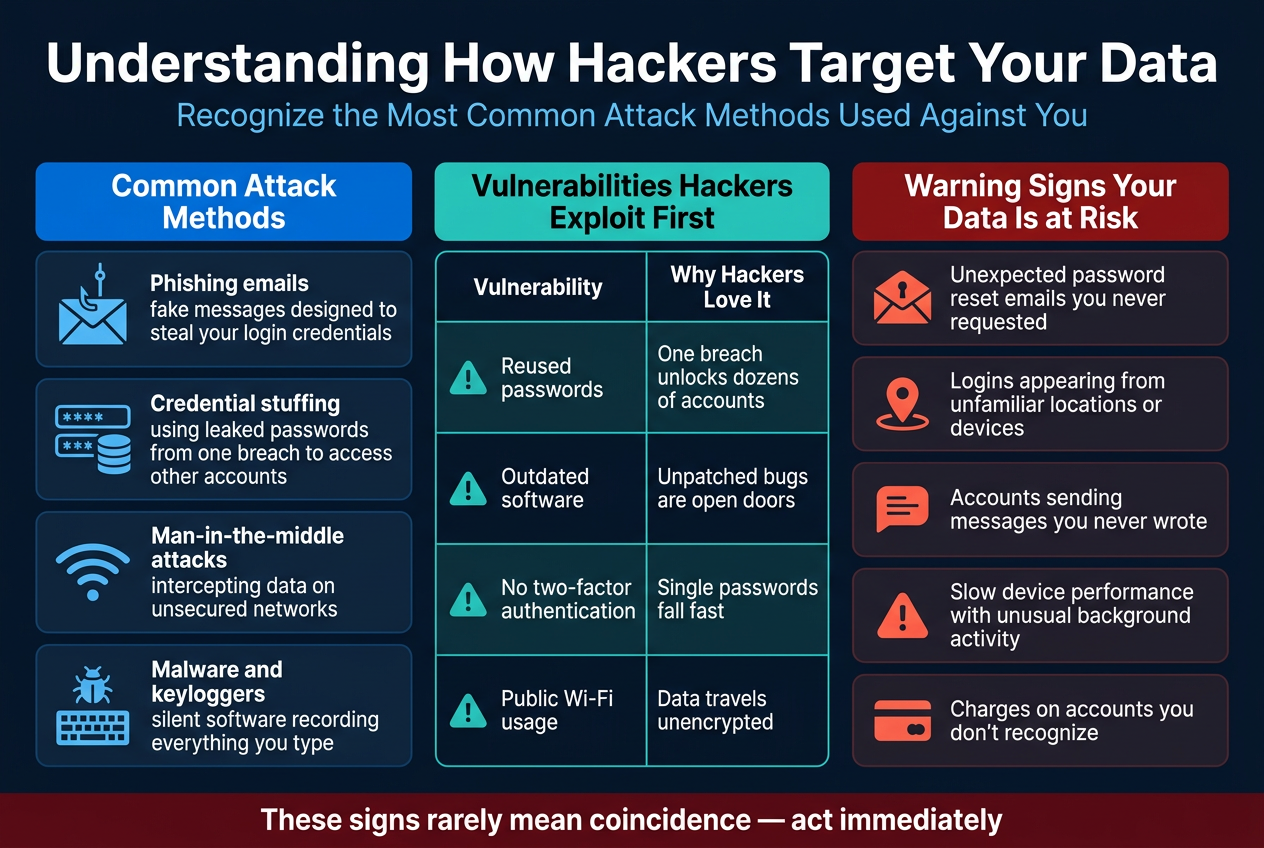
Most attacks aren't dramatic. They rely on a handful of repeatable tricks that work often enough to be worth it.
- Phishing — fake emails, texts, or websites designed to trick you into typing in your login details
- Credential stuffing — attackers take passwords leaked in one breach and try them on your other accounts
- Malware — malicious software that can steal files, spy on activity, or hold your data hostage
- Keyloggers — hidden programs that record everything you type, including passwords
- Social engineering — manipulating you directly, often by phone or message, into handing over information or access
- Data breaches — a company you use gets hacked, and your stored information ends up exposed or sold
- Unsafe links — shortened or disguised links that lead to fake login pages or malware downloads
- Reused passwords — one leaked password unlocking several of your other accounts
Knowing these patterns is the first defense — most of the tips below exist specifically to block one or more of them.
2. Use Long, Unique Passwords and a Password Manager
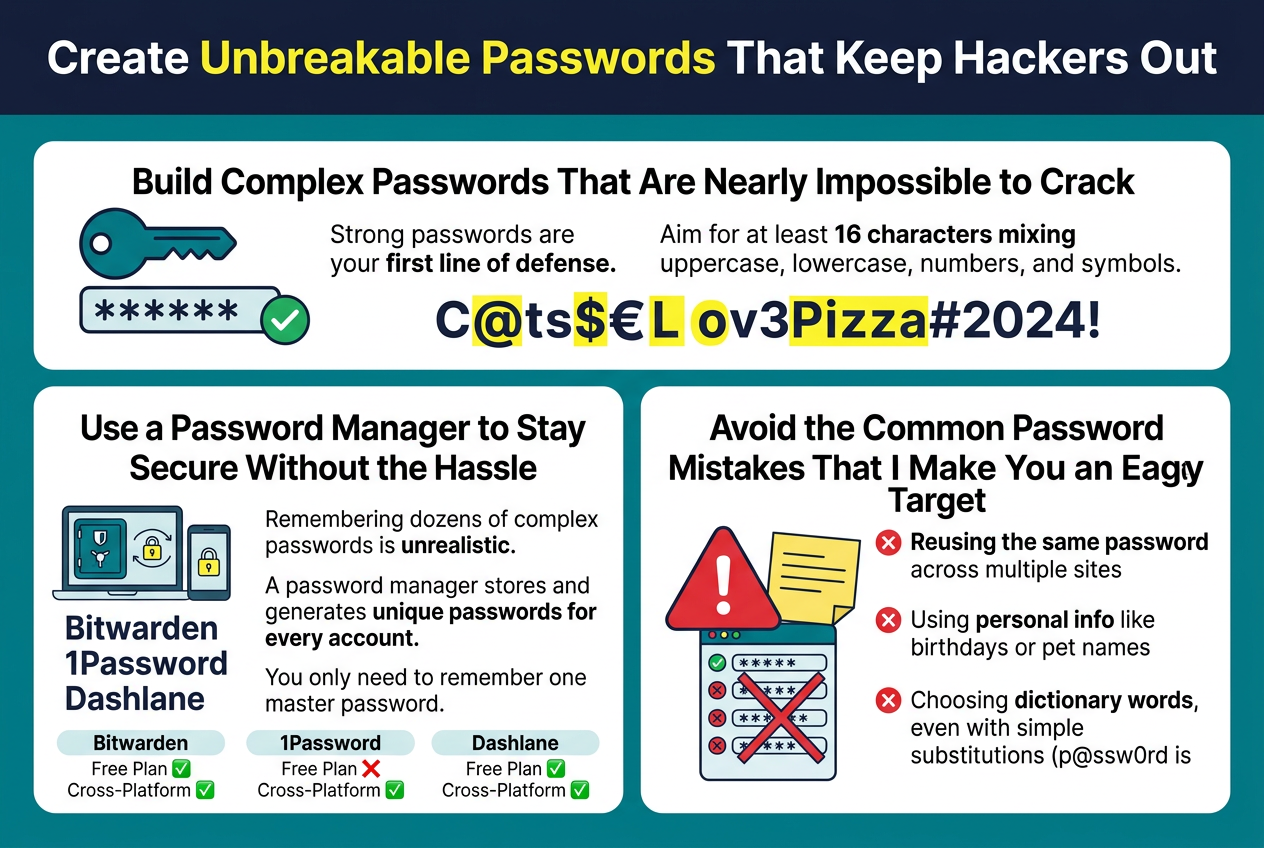
Password advice has changed. Older guidance pushed people toward short, complicated passwords full of symbols and capital letters. The current NIST Digital Identity Guidelines (SP 800-63B-4) instead emphasize length and uniqueness over forced complexity rules. A long passphrase built from a few unrelated words is generally harder to guess and easier to remember than a short string of symbols.
What actually matters:
- Use a different password for every important account — this is the single biggest defense against credential stuffing
- Favor length over complexity; longer passphrases are generally recommended over short, symbol-heavy passwords
- You don't need to rotate a strong, unique password on a fixed schedule — change it immediately only if that account is involved in a breach
- Avoid predictable patterns like birthdays, pet names, or "Password1", "Password2", and so on
Since remembering dozens of unique long passwords isn't realistic, a password manager is the practical solution. It generates and stores strong passwords for you, so you only need to remember one master password.
| Password Manager | Free Option | Notes |
|---|---|---|
| Bitwarden | Yes, ongoing free tier | Free plan covers core password storage across devices; some extras (like built-in authenticator codes) are paid-only |
| 1Password | No — 14-day free trial only | Paid subscription required after the trial ends |
| Dashlane | No — free plan discontinued | Now offers a limited free trial before requiring a paid plan |
Note: for the most current word on free tiers and pricing, always check each provider's own official pricing page directly — plan details change and this is the only source that's guaranteed current.
3. Turn On Multi-Factor Authentication
Multi-factor authentication (MFA) — sometimes called two-factor authentication (2FA) when it uses exactly two steps — asks for a second form of proof beyond your password, such as a code from an app or a physical security key.
MFA can significantly reduce the risk of account takeover even if a password is compromised, since a stolen password alone usually isn't enough to get in. It isn't an absolute guarantee against every attack, but it removes a huge share of automated and opportunistic break-in attempts.
- Authenticator apps (Google Authenticator, Authy, or your password manager's built-in option) generate codes that aren't sent over the phone network
- SMS codes can provide useful additional protection, but they're generally more vulnerable to certain attacks, such as SIM-swapping, than phishing-resistant methods like an authenticator app or a security key
- Passkeys are increasingly supported by major platforms, including Google Accounts and Apple Accounts, and can replace passwords entirely on compatible sites
- Hardware security keys (like a YubiKey) offer strong, phishing-resistant protection and are worth considering for high-value accounts that support them, such as some email, financial, and administrator accounts.
4. Secure Your Email and Recovery Options
Your email is often the master key to everything else. If someone breaks into it, they can usually reset the passwords on most of your other accounts.
- Protect your primary email account with a unique password and MFA, since it's typically the first thing attackers target
- Keep your recovery email and recovery phone number current, so you — not someone else — receive account recovery attempts
- Turn on login alerts so you're notified of new sign-ins
- Save your backup/recovery codes somewhere safe and offline, such as a password manager's secure notes or a physical location
- Periodically check your account recovery settings, since attackers sometimes quietly change them after gaining partial access
5. Protect Yourself on Public and Home Networks
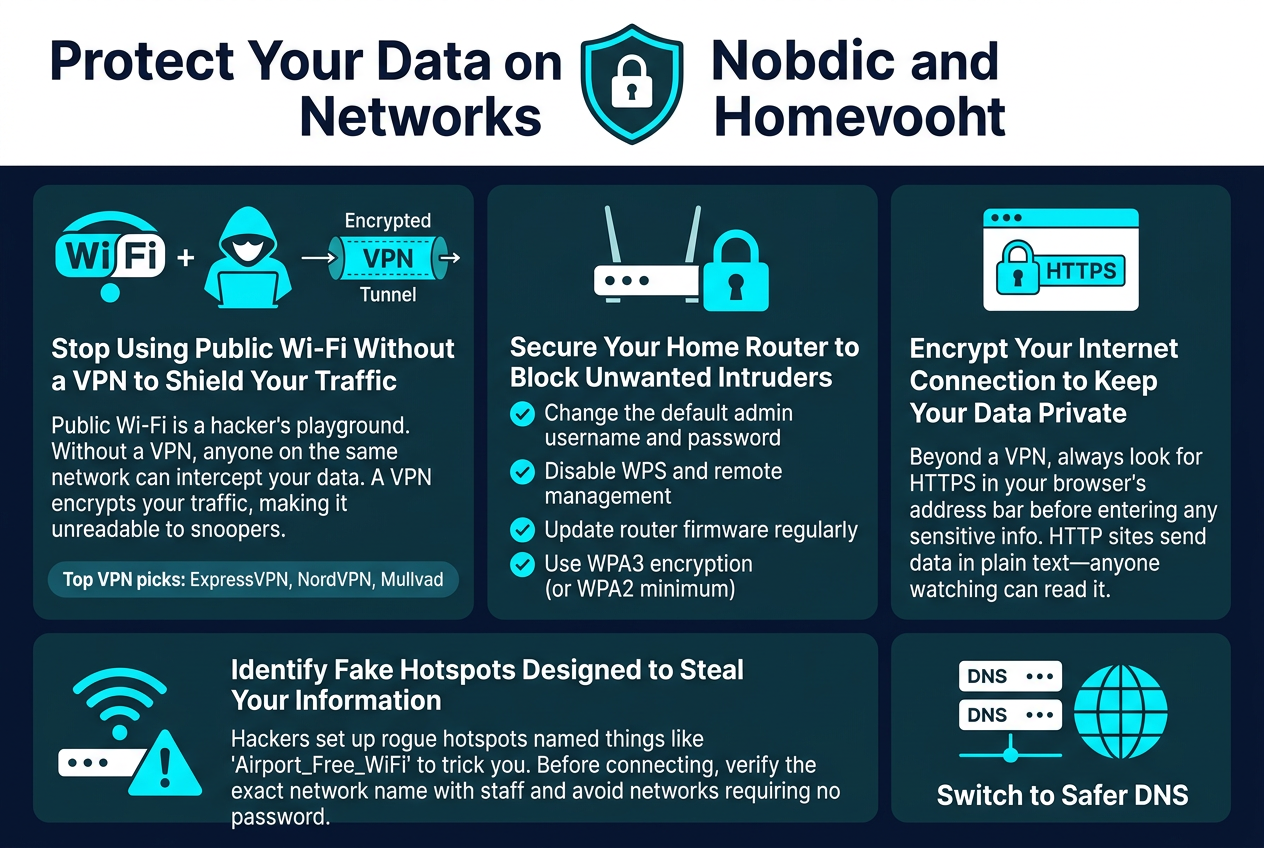
Public Wi-Fi has a scary reputation, but modern web traffic is usually protected by HTTPS encryption by default, so most everyday browsing isn't openly readable to someone else on the same network the way it was years ago. That said, some networks and apps still leak information, and public Wi-Fi remains a reasonable place to be a bit more cautious.
- Look for HTTPS in the address bar before entering sensitive information — it's the baseline protection for most websites today
- A VPN adds an extra encrypted tunnel for your traffic, which can be useful on networks you don't trust, but it isn't mandatory for every public Wi-Fi session and it doesn't protect you from phishing or malware
- Avoid networks with generic names and no password (a common setup for fake hotspots), and confirm the real network name with staff if you're unsure
At home, the router itself deserves attention too:
- Change the default admin username and password on your router
- Disable WPS and remote management if you don't need them
- Keep the router's firmware updated
- Use WPA3 encryption where supported, or WPA2 at minimum
Some people also switch their DNS provider (such as Cloudflare's 1.1.1.1, Google's 8.8.8.8, or Quad9's 9.9.9.9) for reasons like speed or basic malicious-site blocking. This can be a helpful extra layer, but it's not a privacy cure-all — your internet provider and the sites you visit can still see plenty about your activity.
6. Keep Your Devices and Software Updated
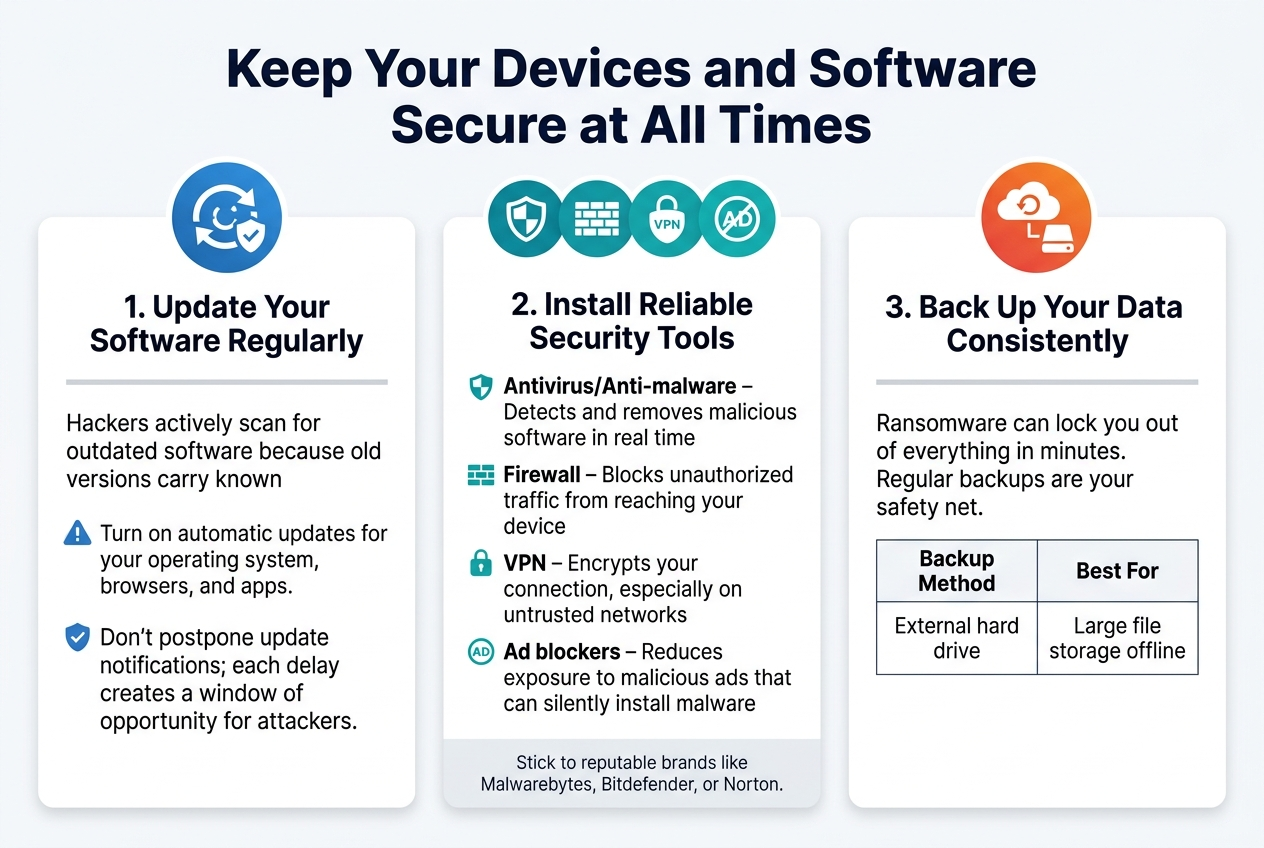
Outdated software is one of the easiest ways in for attackers, because known vulnerabilities in old versions are public information.
- Turn on automatic updates for your operating system, browser, and apps
- Don't ignore update prompts for weeks at a time — each delay is extra exposure
- Update your router's firmware, not just your phone and computer
- Consider reputable security software (such as Malwarebytes, Bitdefender, or Norton) as an added layer, not a replacement for good habits
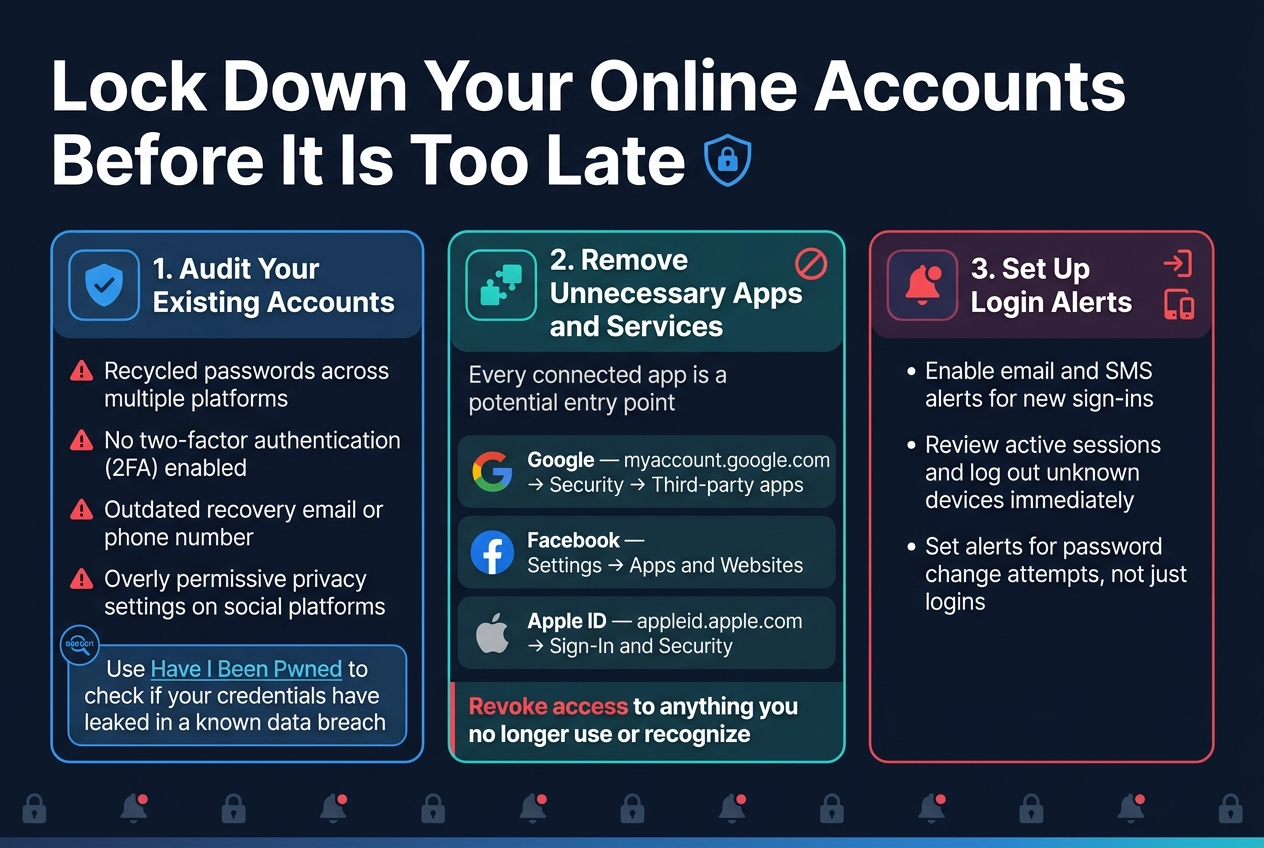
7. Remove Unnecessary Apps and Account Permissions
Every app or service you've connected to your Google, Apple, or social media account is a potential entry point, even ones you stopped using years ago.
| Platform | Where to Check |
|---|---|
| Manage third-party access to your Google Account (official Google support guide) | |
| Apple ID | Manage your apps with Sign in with Apple (official Apple support guide) |
| Facebook/Instagram | Account Settings → Apps and Websites |
Go through each list and revoke access for anything you don't recognize or no longer use.
8. Back Up Important Data
Ransomware, theft, or a simple hardware failure can wipe out everything on a single device in minutes. A backup is what turns that from a disaster into an inconvenience.
| Backup Method | Best For |
|---|---|
| External hard drive | Large files, kept offline and disconnected when not in use |
| Cloud backup (Google Drive, Backblaze, etc.) | Automatic backups accessible from anywhere |
| 3-2-1 approach (3 copies, 2 device types, 1 offsite) | Strongest protection against loss, theft, or ransomware |
How often you back up shouldn't follow a one-size-fits-all rule. Base it on two questions: how often does this data actually change, and how much loss could you live with if today's version disappeared? Files you edit constantly may need very frequent or automatic backups, while files that rarely change need backing up far less often. The right frequency is the one that keeps your acceptable-loss window small enough for that specific data.
9. Watch for Signs Your Account or Data Has Been Compromised
Catching a problem early can save serious damage. Watch for:
- Unfamiliar logins from unrecognized devices or locations
- Password-reset emails you never requested
- Unexpected MFA prompts you didn't trigger
- Transactions or charges you don't recognize
- Messages sent from your accounts that you didn't write
- Account settings (recovery email, phone number) that changed without your involvement
- Unusual device performance or unfamiliar background activity
If you notice any of these: change the affected password immediately (from a different, trusted device if possible), enable MFA if it isn't already on, review and revoke unfamiliar app access and active sessions, and check whether the same password was reused elsewhere so you can update it too.

10. Your Simple Personal Data Security Checklist
- ☐ Use a unique password for every important account
- ☐ Turn on multi-factor authentication
- ☐ Secure your primary email with a strong password and MFA
- ☐ Keep your phone, computer, and router updated
- ☐ Review and remove unused third-party app permissions
- ☐ Secure your home Wi-Fi with a strong router password and WPA2/WPA3
- ☐ Slow down and check links before clicking, especially in unexpected emails or texts
- ☐ Back up important files regularly
- ☐ Review your account login activity occasionally
- ☐ Check whether your email has appeared in a known data breach
To check the last item, use Have I Been Pwned, a free and widely trusted tool for checking whether your email has appeared in a known data breach.
Frequently Asked Questions
What is the best way to protect personal data online?
There's no single fix, but the combination of unique long passwords, a password manager, and multi-factor authentication covers the most common ways accounts actually get broken into.
Should I use a password manager?
Yes, for most people it's one of the highest-impact changes you can make. It removes the need to reuse or simplify passwords just to remember them.
Is public Wi-Fi safe?
It's safer than it used to be, since most websites now use HTTPS encryption by default. It's still worth avoiding entering sensitive information on networks you don't trust, and being cautious of open networks with no password.
Does a VPN protect all my online activity?
No. A VPN encrypts the connection between your device and the VPN server, which is useful on untrusted networks, but it doesn't stop phishing, malware, or protect you if you willingly enter your details on a fake site.
What should I do if my password is leaked?
Change that password immediately, check whether you reused it anywhere else and change those too, and turn on multi-factor authentication on the affected account if it isn't already active.
Is two-factor authentication worth using?
Yes. It significantly reduces the risk of account takeover, even though it isn't a perfect guarantee against every type of attack.
How often should I back up my data?
There's no universal schedule. Base it on how often the data changes and how much loss you could tolerate — data you edit daily generally needs more frequent backups than data that rarely changes.
A note on scope: this article covers general prevention habits for everyday internet users. It isn't a substitute for professional advice if you're responding to an active breach, handling sensitive business data, or managing compliance requirements.
Sources referenced: NIST SP 800-63B-4, Digital Identity Guidelines, CISA – Secure Our World, Have I Been Pwned, Google Account 2-Step Verification support, Apple two-factor authentication support. Password manager plan details reflect each provider's own pricing page at the time of writing (August 2026) — confirm current terms directly with the provider before subscribing.
If you want to go deeper into this field, our beginner's roadmap to becoming a Cybersecurity Analyst is a good next step. For more useful software picks, see our list of the best free developer tools for students and our guide to the best AI tools worth trying in 2026.
Published by the VickyTechJournal Editorial Team.
Comments
Post a Comment